For owners, office managers and inquiry teams
Business email: messages and team access
Client replies stay in the work mailbox, not in an employee’s personal inbox. Bring correspondence into mailboxes your team can access and review sent replies there.
The Mail module is included; the external provider, domain and AI drafts are separate.
No card to register. External mailboxes require authorized provider access.
Start manually. An AI assistant prepares a draft; a person reviews and sends ordinary replies.
- Hosted and connected external mailboxes
- Separate reading and sending rights
- Replies and attachments in the work area
- work address
- Mailbox
- read or send
- Access
- from that mailbox
- Reply
- sent content
- Archive
Message, reply and follow-up
Grant access
- Shared or personal work mailbox
- Reading separate from sending
- Individual staff logins
Reply
- Review sender and recipient
- Text, signature and attachments
- Sent reply archive
Follow up
- A separate task for work
- Email linked to the task it was sent from
- Manager review
What you need to start
One work address
Choose an address needed by your team, not all personal mail.
At your provider: domain, mailbox and DNS
Mailbox, domain and DNS records stay with your provider; moving MX is a separate decision. Follow connection instructions; an app password may be required.
In the account: reading and replies
Agree who responds and grant read or send rights. Shared access does not automatically assign every message.
A test exchange
Use two addresses you own and a safe test attachment.
Your first workflow
- 1
Connect one address
Create a work mailbox or connect an existing one using provider instructions.
- 2
Set permissions
Grant reading or sending access; each employee uses their own login.
- 3
Test the exchange
Send a test message from another address you own, reply and verify both Sent and actual receipt. Create a separate task for follow-up work.
Try your own example
Product steps, not testimonials or promised results.
Letter on the phone
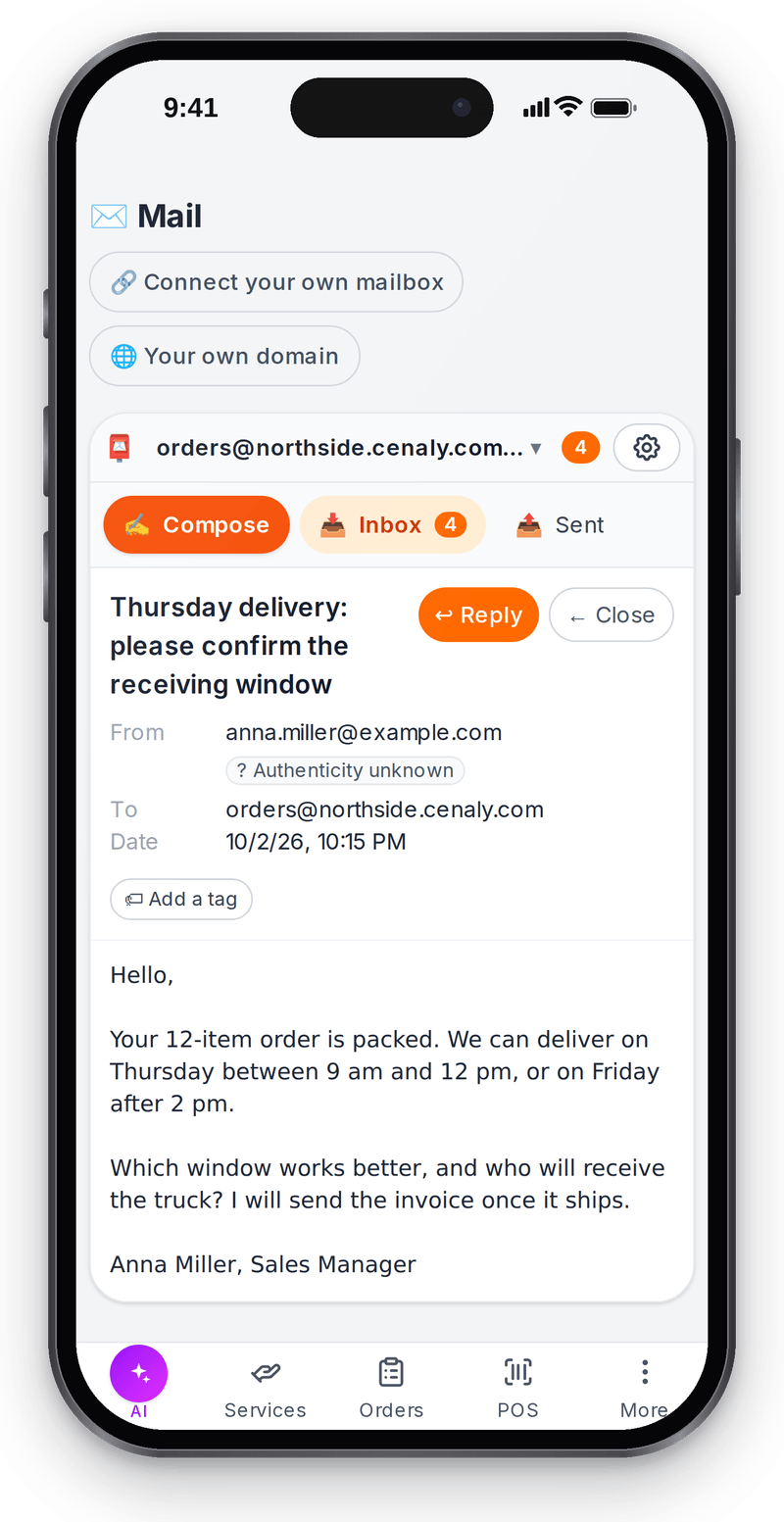
Real screen, test data, 3 October 2026. Reply from your phone from the same mailbox

Shared team mailbox
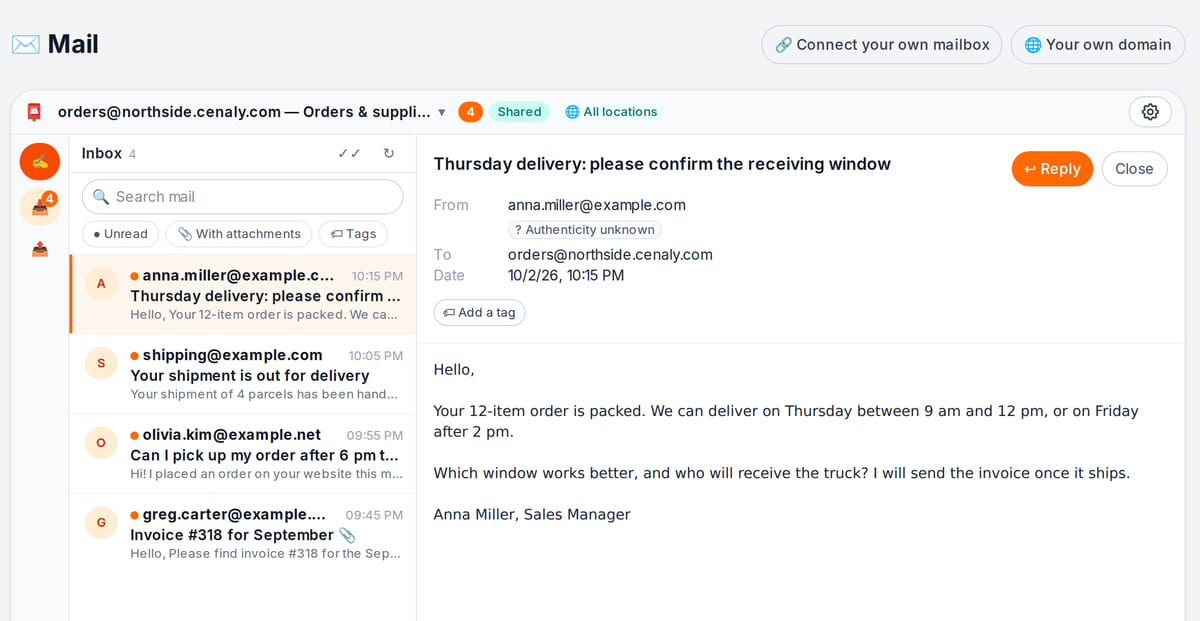
Real screen, test data, 3 October 2026. Supplier correspondence stays in the work mailbox, not a personal one

Read a message and send a reply: separate rights
Local server tests use fake mail providers and storage. No external messages were sent.
- 1
Reader
A read-only employee can see the mailbox but cannot send through the server.
Mailbox access → - 2
Sender
An authorized reply is handed to the provider and archived. Separate tests cover both clouds.
Reply and archive → - 3
Receipt
A Sent entry does not prove receipt. Test exchange between addresses you own before migration.
Mail setup →
How it works in practice

Illustration; the screen shows the real interface, test data, 3 October 2026. Replies go out from the work address even when you are away from the office

Where it helps the owner
Client inquiry
Example: staff reply from the work mailbox and the owner reviews the sent message.
Supplier follow-up
Example: email from a task stays linked to that work.
A new employee
Example: begin with read access, then grant sending rights after review.
Example situations. Measure time and costs with your own operations.
Mailbox costs and AI assistance are separate
Mailbox costs and AI assistance are separate
Mail is an included account extension. Account plans, provider services, domains and paid AI have separate terms.
Cost categories
- Mail is an included extension
- External provider services and domains have their own charges
- AI drafts and agent actions use separate budgets and access rules
- Measure correspondence lookup and handover time; your team sets response expectations
What you can start for free
Start with manual reading and replying. An AI assistant or autonomous agent is not required.
Connect a work mailboxNo card to register. External mailboxes require authorized provider access.
What to consider before you start
- Connections depend on provider protocols, settings and limits; test each mailbox.
- Custom domains require DNS changes. Moving MX can stop delivery to the old provider.
- Sent does not mean read or delivered.
- Agent mailboxes are a separately configured mode; ordinary mail does not reply autonomously.
Test your workflow and required connections before migrating data.
Frequently asked questions
Must I move the whole domain?
No. Start with one mailbox and test exchange first.
Can staff have read-only access?
Yes. Sending rights are separate and enforced by the server.
Will AI send automatically?
A mail assistant drafts for human review and sending. Autonomous agents require separate setup and are unavailable on .ru.
Details for every screen are in the help centre. Where to start →
Test one message, one reply and a colleague’s access
Connect a work address and verify an exchange between your own mailboxes before moving more correspondence.
No card to register. External mailboxes require authorized provider access.